
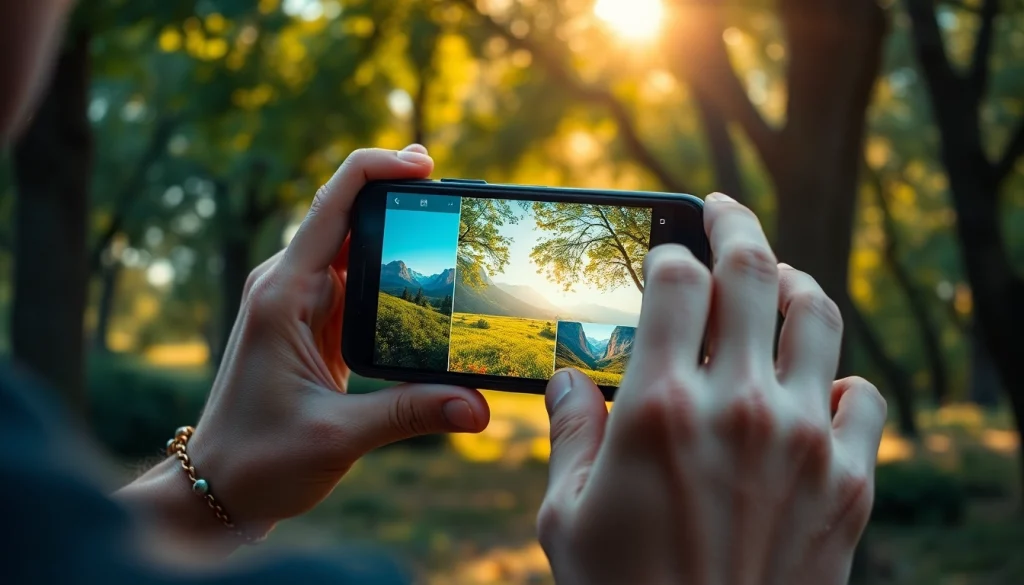
The Essence of Mobile Lightroom Presets
In the digital age, photography has become more accessible than ever, allowing everyone from casual smartphone users to professional photographers to capture stunning images. However, to elevate these photos from good to breathtaking, the post-processing phase is essential. One of the most effective tools for achieving this is through mobile Lightroom presets. These powerful editing tools simplify the workflow and enhance your images with just a few taps. By using mobile Lightroom presets, photographers can achieve a consistent look, save time, and showcase their unique style.
What Are Mobile Lightroom Presets?
Mobile Lightroom presets are pre-designed filters that can be applied to photos within the Adobe Lightroom mobile app. These presets streamline the editing process by allowing users to apply a set of adjustments to their images instantly. By altering parameters such as exposure, color balance, contrast, and clarity, presets give users the ability to create a particular mood or style without needing extensive editing knowledge. They are especially beneficial for those who want uniformity across their portfolio, maintaining a cohesive aesthetic across different images.
Benefits of Using Mobile Lightroom Presets
The utilization of mobile Lightroom presets comes with several advantages:
- Time-Saving: Instead of adjusting each photo manually, presets allow for rapid application of edits.
- Consistency: Using the same presets across multiple photos helps maintain a cohesive style, which is crucial for branding, especially for influencers and businesses.
- Professional Quality: Presets can enhance images to a level comparable to professional editing without requiring extensive skills.
- Learning Tool: Beginners can study the adjustments made by presets to learn about effective editing techniques.
How Mobile Lightroom Presets Work
Mobile Lightroom presets function by applying a series of adjustments to your photo with a single tap. When a preset is created, it records specific editing settings—like saturation levels, tone curves, and sharpening adjustments—and packages them for effortless application. Once you select a preset in the Lightroom app, it applies all of these settings simultaneously to the selected photo. Users can further tweak the image post-application to achieve their desired look, ensuring flexibility in editing.
Selecting the Right Presets for Your Style
Identifying Your Photography Style
Before diving into the vast array of available mobile Lightroom presets, it is crucial to define your unique photography style. Are you drawn to bright, airy images, or do you prefer rich, moody tones? Knowing your style will help narrow down which presets will complement your work best. Some popular styles include:
- Light and Airy: Often characterized by bright whites and soft colors.
- Dark and Moody: Features deep shadows, rich colors, and high contrast.
- Vintage: Focuses on muted colors, grain effects, and a nostalgic look.
- Bold and Vibrant: Emphasizes bright colors and dynamic contrasts.
Matching Presets to Image Types
Beyond personal style, the type of images being taken plays a significant role in preset selection. For instance, landscape photography may benefit from presets that enhance greens and blues, while portraits often require softening skin tones and emphasizing facial features. Here are some examples:
- Landscapes: Look for presets that enrich colors and add contrast.
- Portraits: Choose presets that brighten and soften skin tones.
- Food Photography: Presets that enhance vibrancy and bring out natural textures are ideal.
Tips for Creating Custom Mobile Lightroom Presets
Although pre-made presets are widely available, there is great value in creating your own. Custom presets allow you to fine-tune aspects that resonate with your photography style. Here’s how to create effective presets:
- Start with a Base Image: Select a high-quality photo that represents your editing style.
- Make Adjustments: Tweak exposure, contrast, highlights, shadows, white balance, and colors.
- Save Your Adjustments: Once you’re satisfied, save the settings as a new preset for future use.
- Refine Over Time: As your style develops, revisit your presets and adjust them to reflect these changes.
How to Install Mobile Lightroom Presets
Step-by-Step Installation Guide
Installing mobile Lightroom presets is a straightforward process. Here’s a step-by-step guide:
- Download the Presets: Ensure your presets are in .DNG format, which is compatible with Lightroom Mobile.
- Import into Lightroom: Open the Lightroom app, navigate to the ‘Album’ section, and upload the .DNG files.
- Create Presets: Open the imported image, tap on the three dots menu in the top right corner, and select ‘Create Preset’.
- Name and Save: Give your preset a distinctive name and save it for easy access.
Common Mistakes to Avoid
While installing presets, beginners can often encounter a few common pitfalls:
- Forgetting to Open .DNG Files: Ensure that the correct file type is being uploaded to Lightroom.
- Skipping Adjustments: Remember that presets may need fine-tuning after application for optimal results.
- Not Organizing Presets: Keep your presets organized into folders for easier navigation.
Finding Additional Resources for Presets
A wealth of resources is available for those seeking more presets. Websites dedicated to photography often feature downloadable presets, and social media platforms like Instagram and Pinterest can lead you to many creators. Additionally, photography communities and forums can provide recommendations and tips for finding the best presets suited for your style.
Editing Techniques with Mobile Lightroom Presets
Basic Adjustments After Applying Presets
Once a preset is applied, it may require some basic adjustments to tailor it to your specific image. This includes:
- Exposure: Adjust to ensure the photo is not too dark or overly bright.
- Contrast: Fine-tune to enhance depth and dimension.
- Saturation: Modify the intensity of colors to make the photo pop.
Fine-Tuning Preset Effects
Presets provide a fantastic starting point, but fine-tuning is essential for the best results. Consider the following adjustments:
- Skin Tone Adjustments: Use the selective editing tools to target specific areas.
- Enhancing Details: Zoom in to sharpen details in focal points of the image.
- Creative Effects: Experiment with split toning and vignettes for additional flair.
Combining Presets for Unique Results
Combining different presets can yield fascinating results. To do this effectively, follow these steps:
- Apply a Base Preset: Start by applying your preferred preset.
- Use Additional Presets Sparingly: Apply a second preset, but limit it to specific adjustments to maintain balance.
- Review and Adjust: Continuously review the image and adjust settings to ensure harmony in the overall aesthetic.
Sharing Your Edits and Engaging Your Audience
Optimal Platforms for Sharing Edited Photos
Once your images are beautifully edited, sharing them on the right platforms is vital to reach your audience effectively. Popular choices include:
- Instagram: A visual-centric platform perfect for showcasing images with a large photography community.
- Facebook: Great for sharing edits within groups and with friends.
- 500px: A dedicated platform for photographers to display their work and connect with others.
Building a Community Around Your Edits
Engaging with fellow photography enthusiasts can help grow a supportive community. Consider these strategies:
- Participate in Challenges: Join photography contests that encourage creative edits.
- Host Live Editing Sessions: Showcase your editing process in real-time on platforms like Instagram Live.
- Network: Connect with other photographers through online forums and in-person meetups.
Using Social Media to Promote Your Mobile Lightroom Presets
If you create or share presets, social media serves as a powerful tool for promotion. Here are ways to utilize it:
- Create Content: Share before-and-after comparisons to demonstrate the effectiveness of your presets.
- Engage with Followers: Respond to comments and questions about your presets to build rapport.
- Incorporate User-Generated Content: Encourage users to share their edits using your presets and feature them on your page.
Frequently Asked Questions (FAQs)
What are mobile Lightroom presets?
Mobile Lightroom presets are pre-made filters used in the Adobe Lightroom app to enhance images quickly by applying specific adjustments with one click.
How do I install mobile Lightroom presets?
To install, download the presets, import the .DNG files into Lightroom Mobile, and save them as new presets within the app.
Can I create my own mobile Lightroom presets?
Yes, you can create custom presets by adjusting settings on a photo and saving those adjustments as a new preset.
Do presets work with all types of photos?
Presets can be made for various styles but might require fine-tuning when applied to different types of photos.
Are mobile Lightroom presets suitable for beginners?
Absolutely! They simplify the editing process and offer a great starting point for beginner photographers.